
Two-Factor Authentication: The 2-Minute Fix That Stops Most Hackers
Every day, thousands of accounts are hijacked - not through sophisticated hacks, but because a single stolen password opens the door. Two-factor authentication (2FA) is the simplest, most powerful protection you are likely not using. It takes two minutes. Here is why it matters.
DIGITAL SAFETY
ZxtarAI
5/29/20264 min read
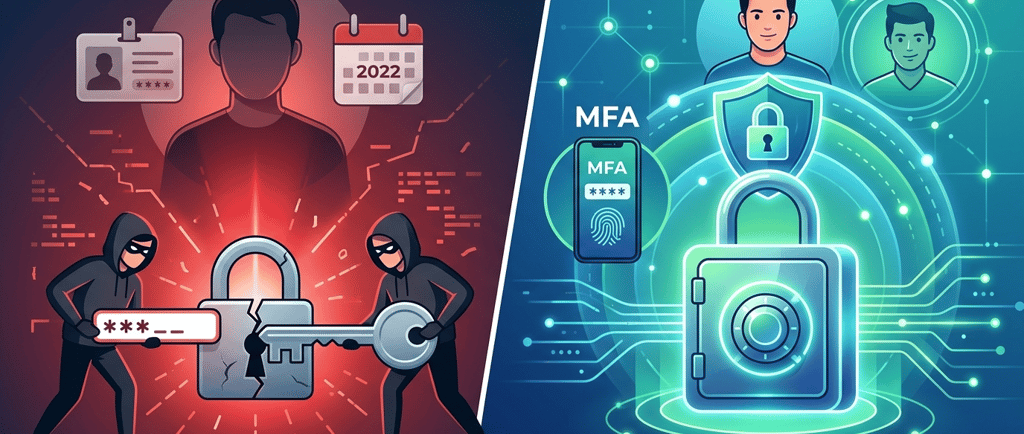
Two-Factor Authentication: The 2-Minute Fix That Stops Most Hackers
Imagine waking up to a notification: "Your account was accessed from a device in another country at 3 AM." Your stomach drops. You haven't travelled. But someone bought your password for a few dollars on a dark web forum — and walked straight in.
This happens to real people every day. Teachers, parents, professionals. And the fix? It takes less time than making coffee.
Reality check: Over 80% of hacking-related breaches involve stolen or weak passwords. Yet fewer than 30% of users worldwide have enabled two-factor authentication.
So, What Exactly Is Two-Factor Authentication?
Think of your home. You have a front door lock - that's your password. Now imagine you also had a second requirement: to enter, someone must also ring a bell that only your phone can hear and confirm. A burglar with a copy of your key is now completely useless without your phone.
That's two-factor authentication (2FA) in plain English. It's a security method that requires two separate forms of proof before granting access to your account:
Factor 1: Something you know; Your password or PIN - the traditional key.
Factor 2: Something you have; A code sent to your phone, an authenticator app, or a hardware key.
Factor 3: Something you are; Fingerprint or face ID - often combined in high-security setups (called MFA).
Even if a hacker steals or guesses your password perfectly, they're stopped cold at the second door — because they don't have your phone.
How Does It Actually Work? A Real-Life Walkthrough
You open your banking app on a Monday morning. You type your password. Normally, that's it - you're in. With 2FA enabled, the bank now sends a 6-digit code to your registered mobile number. You enter that code and - only then - are you allowed in.
That 6-digit code is called a One-Time Password (OTP). It expires in 30–60 seconds and is useless after that. A hacker sitting in another country who just stole your password sees this second prompt and has nothing - no code, no access, no chance.
The types of 2FA, you will encounter:
SMS OTP: Code via text message. Easy but has some risks (SIM-swapping).
Authenticator Apps: Apps like Google Authenticator, Microsoft Authenticator, or Authy generate codes offline - more secure than SMS.
Email OTP: Code sent to your registered email.
Hardware Keys: Physical USB devices like YubiKey - the gold standard for security.
Push Notifications: A tap-to-approve prompt on your phone (used by services like Duo).
Why Your Password Alone Is Already Broken
Here's a truth the tech industry has quietly known for years: passwords, by themselves, are fundamentally broken. Not because you choose bad ones (though many of us do), but because of how the modern internet works.
Every few months, some company you signed up with years ago suffers a data breach. Your username and password end up in a list that gets traded and sold online. Hackers then use automated tools to try those credentials across hundreds of websites - your email, your bank, your social media. This is called a credential stuffing attack, and it's devastatingly effective precisely because most people reuse passwords.
2FA breaks this entire chain. Even with your password, the attacker is helpless.
The 2-Minute Setup: Enabling 2FA on Your Most Important Accounts
Here is the part most people skip because they assume it's complicated. It is not. It genuinely takes about 2 minutes per account. Here's how to do it for the accounts that matter most:
Step 1: Go to Account Settings
Look for "Security," "Privacy," or "Login Settings" in your Google, Apple, bank, or social media account.
Step 2: Find 2FA / Two-Step Verification
It may be labelled "Two-Step Verification," "2FA," or "Multi-Factor Authentication." Click to enable it.
Step 3: Choose Your Method
Pick an authenticator app (recommended) or SMS. Download Google Authenticator or Authy if needed.
Step 4: Verify and Save
Confirm with a test code. Save backup/recovery codes somewhere safe - offline is best.
✅ Priority Accounts to Protect First: Your email account (it's the master key to everything else) → your bank and payment apps → social media accounts → your work accounts → cloud storage (Google Drive, iCloud, Dropbox). Start with email. That single step alone protects most of your digital life.
A Note on Privacy and Your Personal Data
When you enable SMS-based 2FA, you're giving a platform your phone number - and that data carries its own privacy implications. Some platforms use that number for advertising profiling. This is why authenticator apps are the privacy-respecting choice: they generate codes locally on your device, share nothing with the service, and leave no trail. Under privacy frameworks like the GDPR in Europe or India's DPDP Act 2023, your phone number is personal data - be intentional about which companies you share it with.
The Bigger Picture: Why This Matters for Everyone
We live in a world where our digital accounts hold more of our lives than our wallets ever did - health records, financial history, personal conversations, photos of our children. The barriers protecting this data should be stronger than a single word we've reused across a dozen websites.
Enabling 2FA is not a technical task for tech-savvy people. It is a basic act of personal protection - like locking your car or wearing a seatbelt. It costs nothing, takes two minutes, and statistically prevents the vast majority of account takeover attacks. The Microsoft Security team has published findings suggesting that 2FA blocks over 99.9% of automated account attacks.
The hacker who paid $2 for your password on a dark web forum? They'll just move on to the next person who hasn't enabled 2FA. Don't be that person.
#TwoFactorAuthentication #2FA #CyberSecurity #DataProtection #OnlinePrivacy #PersonalDataProtection #InfoSec #DigitalSecurity #PasswordSecurity #CyberAwareness #ProtectYourData #AccountSecurity #OTP #AuthenticatorApp #StaySafeOnline #PrivacyMatters #HackerProof #DataPrivacy #CyberHygiene #DigitalPrivacy #MultiFactorAuthentication #MFA #TechTips #SecurityTips #GDPR #DPDPAct #InternetSafety #PrivacyFirst #ZxtarAI
Disclaimer: The information in this blog is for general awareness and educational purposes only. It does not constitute professional cybersecurity, legal, or technical advice. Readers should consult qualified professionals before making security-related decisions. The author accepts no liability for any loss arising from reliance on this content. References to third-party products are illustrative and do not constitute endorsement. Security landscapes evolve - always verify current best practices from authoritative sources.
© ZxtarAI - "In a world of open doors, two locks are always better than one."